Every block in the Message Builder, and when to use it
The Message Builder has fourteen block types: text, heading, list, button, image, columns, divider, spacer, social links, quote, menu, table, video and raw HTML. You place them by typing / or by dragging from a palette, and columns come in preset layouts, so most of a newsletter or announcement can be built without opening an HTML file.
What an email is made of
Under the surface, an email is a stack of rows. Each row holds one thing: a heading, a paragraph, a picture, a button, or a set of columns that themselves hold those things. Writing those rows by hand means nested tables and inline styles, because that is what mail clients reliably understand. A block editor lets you work with the rows and leaves the table code to the renderer.
That only works if the editor has a block for each piece people actually use. A missing block is where someone ends up pasting HTML from somewhere else, and that is where layouts break.
The fourteen blocks
| Block | Use it for | Worth knowing |
|---|---|---|
| Text | Paragraphs | Inline bold, italic, links and colour |
| Heading | Section titles | Six levels, H1 to H6 |
| List | Steps, features, line items | Bulleted or numbered |
| Button | The call to action | Text colour is checked for contrast against the fill |
| Image | Pictures and banners | Optional link |
| Columns | Side-by-side content | Stacks on phones; no columns inside columns |
| Divider | A horizontal rule between sections | Set its colour and thickness |
| Spacer | Vertical breathing room | Set its height |
| Social | A row of profile links | Aligned left, centre or right |
| Quote | Pull quotes and callouts | Accent bar and an optional attribution |
| Menu | A navigation row across the top | Horizontal links |
| Table | Pricing, schedules, comparisons | Optional header row and striped rows |
| Video | Pointing people to a video | A linked thumbnail with a play badge; email cannot play video inline |
| Raw HTML | Anything the other thirteen do not cover | Cleaned of scripts, forms and frames |
The video block deserves a note, because it is the one people expect to work differently. Mail clients do not play embedded video reliably, so the block shows a thumbnail with a play symbol that links to the video. Outlook for Windows shows the linked thumbnail without the play symbol, because it cannot position one on top.
Two ways to add a block
- Type
/in an empty block. A menu opens; type a few letters to filter it, use the arrow keys, and press Enter. You never leave the keyboard. - Drag from the palette when you would rather see the options laid out. Drop the block where you want it, or click it to place it after the block you have selected.
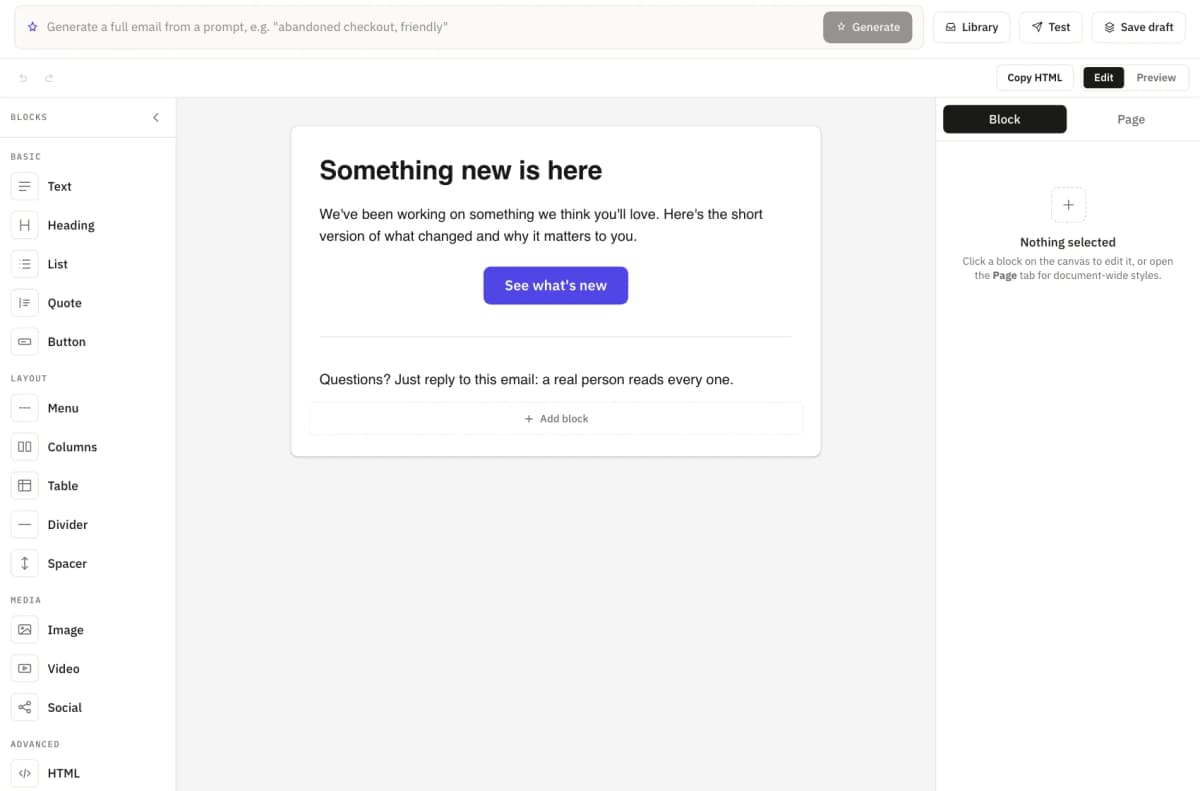
Inside any text, type {{ to insert a merge field such as the recipient’s first name. Mistakes are an undo away.
Columns without fiddling with widths
Columns come in preset layouts, so you pick a shape and then fill it in:
- Two: two equal columns.
- 1:2: a narrow column and a wide one, such as a picture beside a description.
- 2:1: the same, the other way round.
- Three and Four: equal columns for product rows or icon grids.
On a phone the columns stack into rows by default, and in Outlook they hold side by side. Each block also has its own spacing, background, border and corner radius, and can be hidden on mobile; see Hide email blocks on mobile, keep one template. How the output survives Outlook and dark mode is covered in Outlook, dark mode and the pale button.
The raw HTML block: the escape hatch
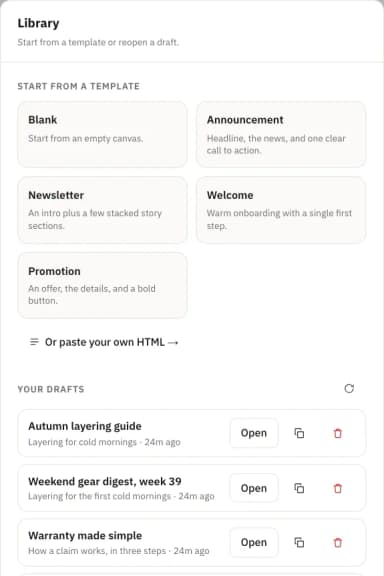
When a piece needs markup the other thirteen do not offer, it goes into one raw HTML block, and the rest of the email stays editable as blocks. The HTML is cleaned before it is rendered: scripts, forms, embedded frames and event handlers are removed, because mail clients block them and they have no place in an email.
It is also how existing templates come in. Paste a full email and it becomes one raw HTML block that keeps its layout, rather than being split into blocks and mangled on the way. For what to check when you do that, read Move your email templates without the old tracking pixel.
Limits worth knowing
- Raw HTML is not editable as blocks. You edit it as HTML. That is the trade for not breaking the layout.
- Columns go one level deep. A column holds blocks, not more columns.
- Video does not play inside the email. The block links out to wherever the video is hosted, so pick a thumbnail that makes the click worth it.
- No client draws every email identically. Preview it in the builder, then send a test to the mail apps your readers use.
The result writes like a document and produces an email. Most of a newsletter can be built by someone who has never opened an HTML file, and the person who has can still drop in their own. Try it with a 14-day trial.