Test drive an email automation before anyone else
Before real contacts enter an automation, put your own address through it and receive what they would receive. In Email Digit that is Test drive: activate the flow, type an address you own, and it is enrolled for real and the first step runs straight away. Waits take their full time, so you experience the flow from the recipient’s side.
Why a preview is not enough
A preview shows you one email in a frame inside the editor. It cannot show you what a real automation does over days:
- whether the email lands in your inbox, a promotions tab or spam;
- how the subject line reads next to everything else in a real inbox;
- whether merge fields fill in, or leave a gap in the greeting;
- whether the wait you set feels attentive or pushy from the other side;
- whether a step you thought was wired up runs at all.
The only way to see those is to be a recipient. Whatever tool you use, go through every flow yourself before anyone else does, and keep a test mailbox at each of the large providers your customers use.
How Test drive works
- Activate the flow. Test drive runs the live flow, so a draft refuses and asks you to activate it first. If the flow’s trigger is a segment or tag, decide who enters before you activate, because real contacts can start entering too.
- Type an address you own into Test drive. It is enrolled and the first step runs immediately. If that step is a send, the email goes out now.
- Read the confirmation. You are told which step the address is now at, for example a Wait with its length, or that every step has already run.
- Watch the run log. Each step the address passes appears with its outcome: done, held with a reason, skipped, or failed.
After a wait, the rest of the flow follows its own timing, the way it would for any contact. A three-day wait means you hear from the flow again in three days.
It is a real enrolment, not a simulation
Test drive does not pretend. The address gets the emails, waits are not shortened, and it counts as an enrolment in the flow’s numbers. The same checks apply to your test send as to anyone else’s: if your address is on the workspace’s do-not-send list, the send is held and the run log says why, and if the step respects quiet hours, it waits until they end.
That is the point. A simulation cannot show you what your inbox does with the email, or whether the wait feels right. It also means you should never type a customer’s address into Test drive. Use one you own.
What a test address cannot show you
The address you type is enrolled as an address, not as one of your contacts, even if a contact with that address exists. So anything that depends on a contact’s history behaves the way it would for a stranger:
| Part of the flow | What the test address does |
|---|---|
| A step with an “only run if” condition | Skips it, and the run log says the condition was not met |
| A branch | Takes the Otherwise path, or finishes the flow there if the branch has none |
| The flow’s goal | Never counts as met, so the address runs to the end |
| The first name merge field | Fills in as “there”, so “Hi there” |
To test a branch arm or a goal, you need a real contact who matches it entering through the flow’s own trigger. For a tag-triggered flow, give a contact record with your own address the tag, and to see the other arm, use a second contact without it. Then follow each contact in the run log.
A checklist for your first run
- The first email arrived, in the inbox rather than spam or a promotions tab.
- The subject and preview text read well in the list view on your phone.
- Every link works, and the unsubscribe link is present on marketing email.
- The greeting reads naturally with the fallback name.
- The run log shows the step you expect, with no step marked skipped that you meant to run.
- After each wait, the next email arrived when you expected it.
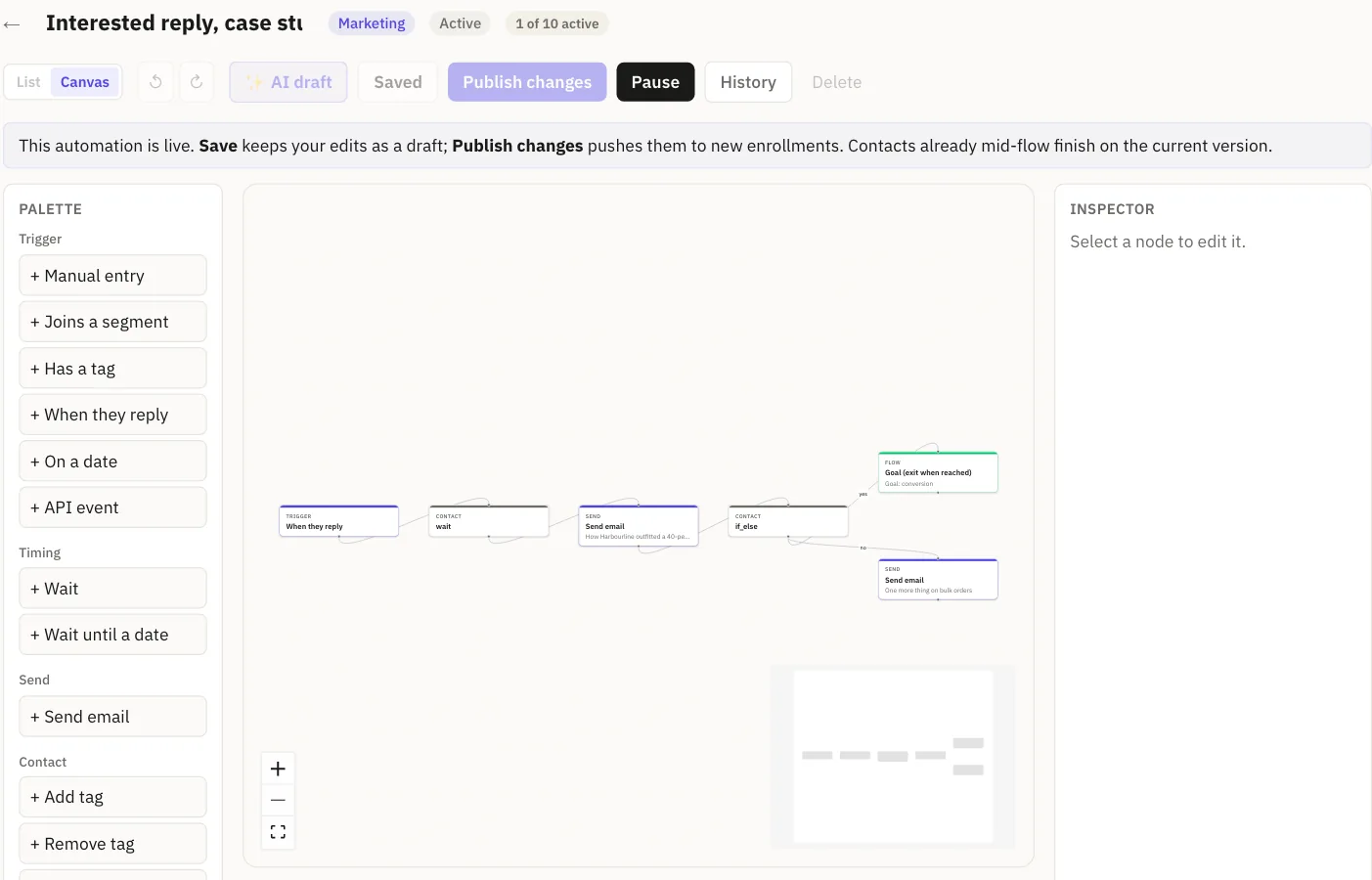
If something is wrong, edit the flow and publish. Contacts already in it finish the version they started, and new enrolments get the fix. For how goals, branches and the run log fit together, see Stop automation emails once someone buys.
Repeat the run after any change to timing or content, with a fresh address if the first one is still partway through. Many mail providers support plus addressing, such as you+welcome2@example.com, which arrives in the same inbox and keeps each run separate in the run log.
The habit is worth keeping in any tool: be the first contact through every flow you build.