Email marketing templates and how to use them

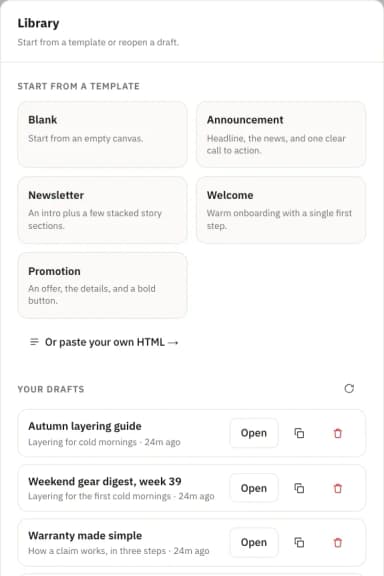
An email marketing template is a ready-made layout you fill with your own words and images, so each campaign does not start from a blank page. The five that cover most needs are the welcome email, the newsletter, the announcement, the promotion and a plain text-style message. Email Digit includes starters for four of them, and you can save your own.
What a good template does
A template should make the next email faster to write and harder to get wrong. That means three things: the structure is already sensible, your brand's colours, fonts and logo are already in place, and it works on a phone. A template that looks impressive but forces you to rewrite every block is not saving you time.
Look for templates that:
- have one main call to action and make it obvious,
- stack into a single column on a phone,
- use real text rather than a picture of text, so it still reads when images are blocked,
- leave room for the unsubscribe link and your postal address.
The five template types and when to use each
| Template | Structure | Use it for |
|---|---|---|
| Welcome | Warm greeting, one thing to do first, a sign-off | New sign-ups and new customers |
| Newsletter | A short intro, then a few stacked sections with links | A regular update with several items |
| Announcement | Headline, the news, one button | A launch, a change or an event |
| Promotion | The offer, the details, a bold button | A sale or a limited-time deal |
| Plain message | A few short paragraphs, no heavy design | A personal note, a question, a request for replies |
The Message Builder ships with starters for Announcement, Newsletter, Welcome and Promotion, plus a Blank canvas. The plain message is just a Blank canvas with a few text blocks, and it is often the one that gets the most replies.
Template outlines you can copy
These are outlines, not finished emails. Replace each line with your own words. The sample subject lines are illustrations, not tested winners.
Welcome email
- Subject: "Welcome to [your name]" or "You're in. Here's what happens next."
- One sentence thanking them and saying who you are.
- What they will receive from you, and how often.
- One first step with a single button.
- An invitation to reply with a question.
Newsletter
- Subject: the most useful item, stated plainly.
- A two-line intro saying what is inside.
- Three or four short sections, each with a heading, two lines and one link.
- A closing line that invites a reply.
Announcement
- Subject: what is new, in plain words.
- A headline that repeats it.
- Two short paragraphs: what changed and why it matters to the reader.
- One button for the action.
Promotion
- Subject: the offer and the deadline, if there is a real one.
- The offer in one line.
- Details: what is included, who it is for, any conditions.
- One bold button. Repeat it once near the end for long emails.
Only state a deadline you will keep. A fake countdown teaches readers to ignore you.
How to use a template in Email Digit
- Open the Message Builder and choose Library, then pick a starter. Or paste your own HTML if you already have a layout.
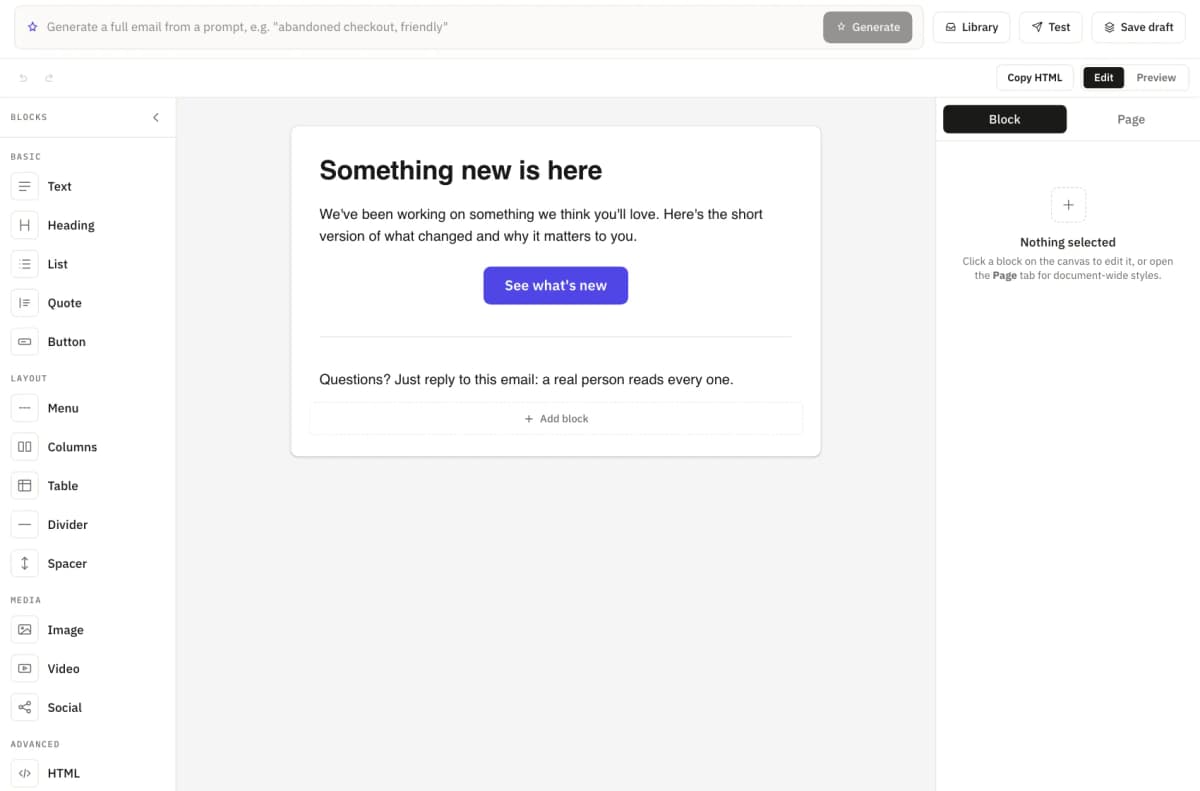
- Edit the blocks. There are fourteen types, including text, heading, button, image, columns and table. See the block types.
- Let your brand apply. If you set up Brand Studio from your website address, the colours, fonts and tone come from it. See brand kit from your website.
- Or ask for a full draft. Describe the email in a sentence and Email Digit AI drafts the whole thing in your brand's voice for you to edit.
- Save your finished email as a template from the campaign composer, so the next campaign starts from it.
- Send a test to yourself and check it on a phone before you send it to anyone else.
Make a template work on a phone
Most people read email on a phone, so check the narrow view every time. Columns stack into one on small screens, so put the most important block first. If a block is useful on a desktop but clutters a phone, you can hide it on mobile. For the full layout rules, read marketing email format and layout. See hiding email blocks on mobile. If you use dark mode buttons, see Outlook dark mode buttons.
Template mistakes to avoid
- One big image with all the text inside it. It disappears when images are blocked.
- Three buttons that compete with each other.
- Small grey text for the key message.
- Forgetting the unsubscribe link and postal address.
- Keeping a template for years without checking that it still looks right.
Want to see finished emails? Read email marketing template examples, with eight you can copy.
For the writing itself, read how to write an email that converts. For the first send, see how to do email marketing.
What is an email marketing template?
A reusable layout for a marketing email. You change the words and images and keep the structure, so each campaign is faster to build.
Which template should I use first?
A welcome email is the best first one, because every new contact receives it. After that, an announcement or a newsletter, depending on what you send most.
Can I use my own HTML template?
Yes. The Message Builder library has a paste option for your own HTML. Scripts, forms and other elements that mail apps do not accept are removed when the email is rendered.
Do templates work on mobile?
They should. Columns stack on small screens by default, and you can hide individual blocks on mobile. Always send yourself a test and look at it on a phone.
Can I save my own template?
Yes. From the campaign composer you can save an email as a template and start the next campaign from it, and you can save blocks you reuse.